
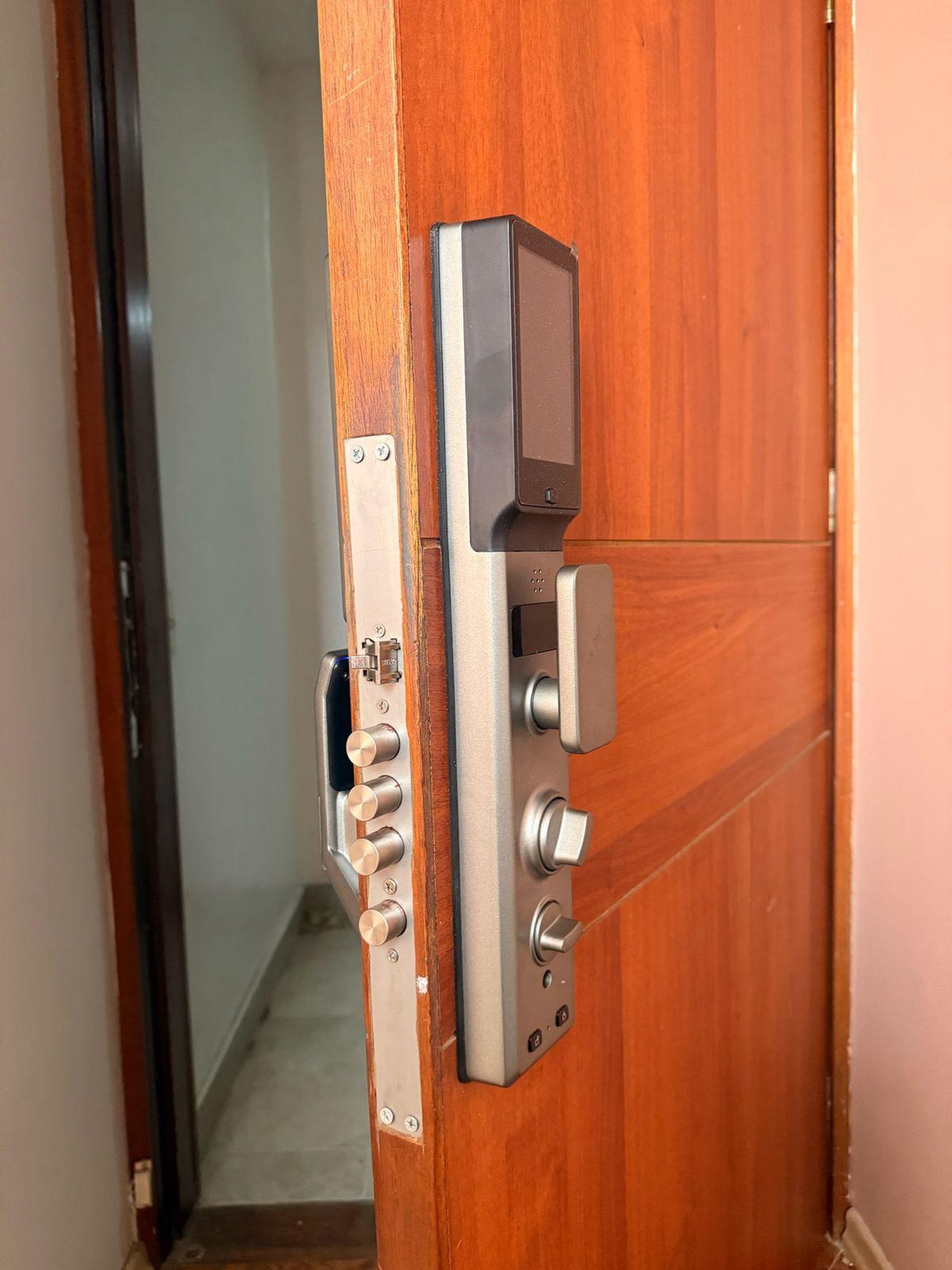
IPM016
Technical details
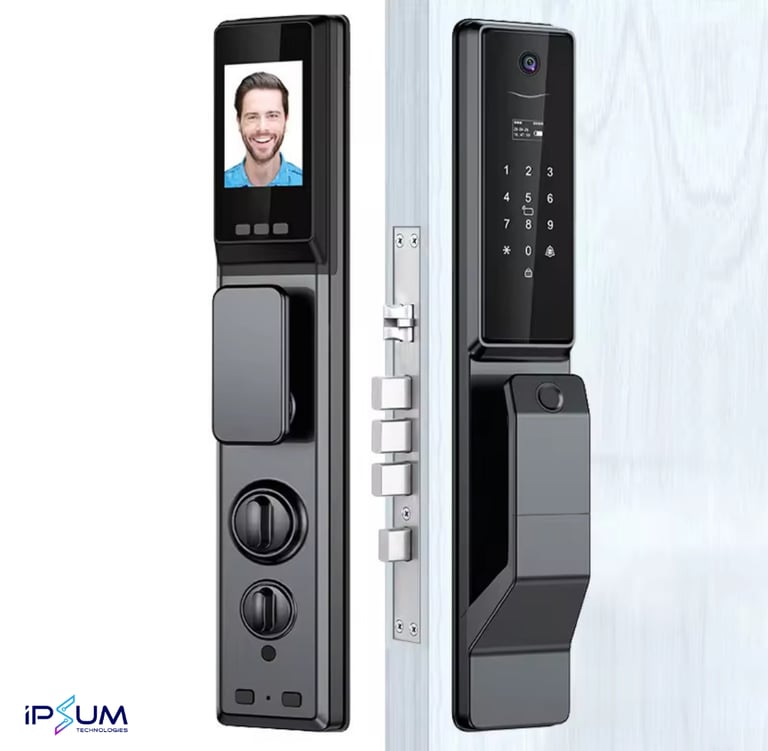
Dimensions: 43 x 8 x 5 cm
Opening methods: face id, fingerprint, passcode, ic card, mechanical key, palm vein, remote app wifi.
Users capacity: 190 users + 10 admin (max. 100 fingers, max. 100 faces, max. 100 cards, max. 50 passcodes)
Power supply: 4200 mAh lithium battery
App: Wifi Tuya Smart
App functions:
Video call
Temporary password
Entrances registry
Member management
Warnings
Battery charge
Remote opening
Accesories
2 ic cards
2 mechanical keys
Mortise 6068
1 latch
3 security bolts
1 night bolt
IPM016
User manual
Motor direction

Access to the admin menu [turn on keypad + *#]
Put 888#
Press 1 for motor direction change
Press * go out the set up
Check proper motor closing and opening direction
Add Administrator

Access to the admin menu [turn on keypad + *#]
Put admin. factory code as '123456' and confirm with '#'. If already created, put previously admin. user
Press 1 for admin setup
Press 1 to add admin user
Press 1 for fingeprint, card or passcode. Or press 2 for Face ID
Press # to confirm user ID
ADD NEW USER:
For fingerprint press and realese until system confirm with green light
For IC card put the card ONCE close to the reader (between 5 and 8 numbers)
For Face ID take a step away the lock front panel, look straight to the face id reader and follow instructions.
For passcode enter 4-8 digit password and confirm with #, then enter again the same password and confirm with #
Go out the menu with * multiple times and try if your new admin user opens the lock succesfully

For any admin user after first created (máx. 10)
Add Normal User

Access to the admin menu [turn on keypad + *#]
Put a previously created admin. user
Press 2 for user setup
Press 1 to add user
Press 1 for fingeprint, card or passcode. Or press 2 for Face ID
Press # to confirm user ID
ADD NEW USER:
For fingerprint press and realese until system confirm with green light
For IC card put the card ONCE close to the reader (between 5 and 8 numbers)
For Face ID take a step away the lock front panel, look straight to the face id reader and follow instructions.
For passcode enter 4-8 digit password and confirm with #, then enter again the same password and confirm with #
Go out the menu with * multiple times and try if your new user opens the lock succesfully
Delete User
Access to the admin menu [turn on keypad + *#]
Put previously created admin user
Press 2 for user setup
Press 2 to delete user
Put user ID and press #. User ID is given when creating a new user, this ID can be checked in the app entrances registry
Go out the set up with * multiple times and check if user is not working anymore
Date/time update

Access to the admin menu [turn on keypad + *#]
Put previously created admin user
Press 3 for general settings
Press 1 date and time setup
Put year-month-day-hour-minutes
Go out with * multiples times and check if date is updated
Auto lock setup

Access to the admin menu [turn on keypad + *#]
Put previously created admin user
Press 3 for general settings
Press 3 for functions
Press 2 to set autolock timer until reaching the desired closing time
Go out with * multiples times, open with created user and wait until the lock closes alone
Dual verification

Access to the admin menu [turn on keypad + *#]
Put previously created admin user
Press 3 for general settings
Press 2 for opening mode
Press 2 to set dual user verification or 1 to set single user verification
Go out with * multiples times and check dual verification
App connection

Download and LOGIN in TUYA SMART APP
Access to the admin menu [turn on keypad + *#]
Put previously created admin user
Press 2 for USER settings
Press 3 for NETWORK
Press 2 to turn off network module
Press 1 to turn on network module and wait until connecting sound starts. If failure, press 2 and try again
Open the app with bluetooth activated and cellphone connected to 2.4 GHz wifi
Smart lock will automatically appear in main menu or adding new device
Put network password and wait until proccess finish
Set new name for the smart lock device and press DONE
FACTORY RESET

Press open and close inner pannel buttons at a time until lock ask for confirmation
Press #
Try any non registered fingerprint to check if reset was succesfull, confirm if opens the door and light red.